Friday, October 9, 2015

HOW TO STOP WINDOWS 10 TAILING ON YOU


   Windows 10 is amazing, fantastic, faster, smoother and more user-friendly than any Windows operating system that has come before it.

 But there is something you should know Window 10 enables Microsoft to monitor everything you do, including every keystroke and voice input, and even your location, information of your contact, names of people in your appointments, as well as your name and nickname, your recent calendar events e.c.t.

 Microsoft has been caught installing latest updates onto Windows 7 and Windows 8 computers that effectively introduce the same data collecting and user behavior tracking features used in Windows 10.

 Under the new updates, the operating systems indiscriminately upload data to Microsoft's servers, which might be a major privacy concern for many users. So how can you stop them?

SO HOW TO STOP THEM?

when installing window 10 don’t use express setting instead use customize setting in that way you can change setting before you even getting into window  If you want to change this setting after installing that ok

If you want to use maximum privacy setting it’s recommended to use your local account to log into window 10 in place of using your email address applied ID account it will disable your PC about 10% of your privacy to share with Microsoft. The only downside of that is you can’t cortana with  local account , so if you want to use cortana  you need to log in with Microsoft account  but use cortana it has to collect data about what you are typing, location e.c.t So when cortana  popup again  select  I’m not interested  then click  I’m sure

  WHAT TO DO? 

  PRIVACY SETTING in your Start Option box, now See the Privacy Window and from there you can see those other category

1.    Turn off advertising id the option and Turn off all other option. Click the link “your privacy and Microsoft personalized ads” it gonna take you to Microsoft website click choose  and turn off personalized ads in the browser

2.    next we go to Feedback & diagnosis  choose Never for feedback in the Diagnosis and usage data turn it to basic

3.    then go to Other devices option if don’t use window phone Turn off “Microsoft phone companion option”

4.    Go back Messaging option and Turn it off if you don’t use windows phone

5.    Then get into speak, inking & typing this is probably what you definitely want it to turn off if you are not gonna use cortana because this  collect most of your data so it’s better to  turn it off

6.    Then go back to location option if you are not gonna use location services Turn it  off  as well

NETWORK AND INTERNET so now we need to go to Wi-Fi, back to setting choose network

1.      Go to Wi-Fi panel turn off hotspot because when you need it you can turn on to connect your device.  Turn off network share by contact that means you can share your friend your password without having to actually give them your password

So above is all about How to Stop Microsoft to Spying on You with Window 10. With this you can easily keep your privacy if you don’t like window 10 to access your privacy with simple steps that discussed here. Hope you like our work, do share with others too. Leave a comment if you want to know anything from us.



Saturday, September 12, 2015

Always keep window you want to float above the others easy!!!


              How do I Always Keep a Window on Top?


Well, here is how ?   Sometimes  when we multitasking in our computer we open more than one window to

perfom  different task , may be we want to watch video  and do something else at the same time but don't

 want the video to be minimized we just need to stay on top and keep on watching . Its really  annoying when  we  have to jump

back and  forth in  many opened tabs  to find desired video or files , lucky for you there is a way to 

to keep that video on top and keep doing your work, using simple fantastic tool  known as Always-on-top

 Always-on-top is the free utility that allows any program window to stay on top floating above the other

ones want to work in. And it couldn't be simpler to use.

      HOW TO DO IT  :

  All you need is to  run the downloaded utility (link below) , select the window you want to keep on top,

then press Ctrl-Space.  Repeat the same way with any other windows you want to keep on top. To turn off

the function, click the window again and press Ctrl-Space again.

                   Download Always on top here 


Thursday, August 27, 2015

Selfie Yourself With Digital Makeover!


Love to play dress up like a barbie? Try the new one-touch supermodel and wedding makeover looks!  Luckily, I've found an app with  hundreds  makeover combinations you can do makeup on a photo or in real-time
 
YouCam Makeup is the best makeover and hairstyle studio with lipstick, eye makeup,, blush and much more .Whether you want just want to try a new look, YouCam Makeup’s hundreds of makeup and makeover combinations will help you find the perfect look  

 You'll just have grab your digital makeover and play around to see everything you can do.
Let’s take a selfie! And Make It Up

                 More Options for download YouCam Makeup

                    Google Play link             Download APK


Thursday, August 20, 2015

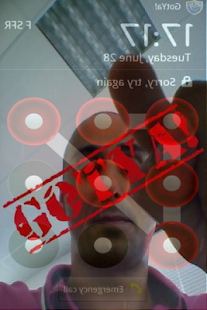
capture face when someone tries to snooping your phone GotYa! Face Trap & Security


                   GotYa! Face Trap & Security captures the intruder's photo who tries to snoop on your android


Cover art


      Ever wanted to know who  tries to unlock your phone while you were away. Your friends or family member might have tried to unlock your phone.  GotYa! Face Trap & Security  takes a silent   snapshot through the front facing camera when someone tries to unlock your phone with the wrong code  The operation  silent and invisible . No warnings are shown to the intruder.   Then, Gotya gets the location of your device, forms a Google maps link, and then send it along with the picture to your email!
GotYa! Security & Safety - screenshot thumbnail

     GotYa! can be controlled through simple remote SMS commands and other more feature  take a look  at it  
                         Install app from google play
                         Download APK from APK20
     
  Don't forget to check best GotYa! alternative here


Sunday, July 5, 2015

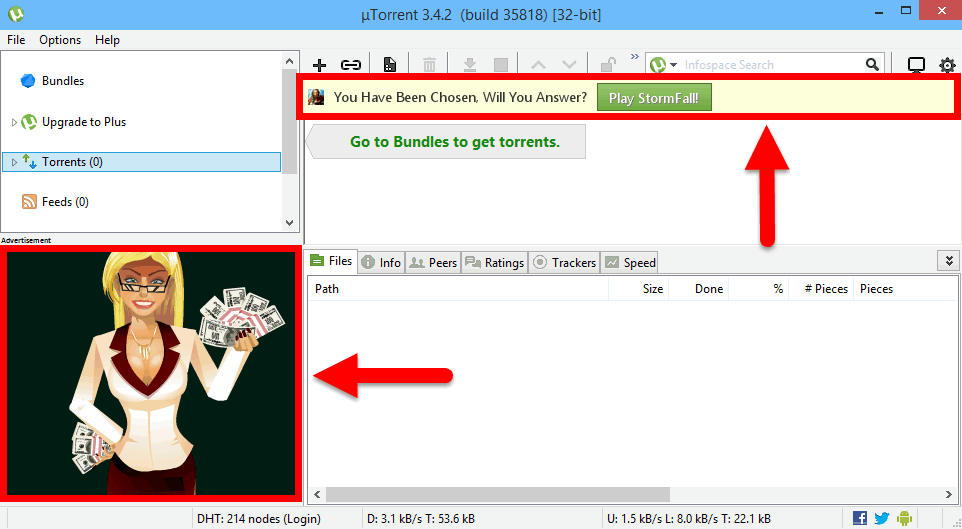
Get rid of uttorent annoying ads in 3 steps


HOW TO DISABLE ADS IN UTORRENT (WORKING !!!!)


Hey, In this post I am going to show you  how to Disable ads completely in uTorrent easily!
By far uTorrent is one of the best and most popular bittorrent clients , its faster, smarter and safer. What makes it even better is its availability across platforms i.e. Windows, Mac, Linux and mobile devices like Android and iPhone.


STEPS TO REMOVE ADS:


STEP: 1

open Options > Preferences >  Advanced.


STEP: 2

Next, in the ‘Filter’ search box, type in ' offer ' or 'off '
 

STEP: 3

    scroll down and you ll get to see the last two offer , simply double click each of them to change their value to false that it... easy!!!
Enjoy!

ULTIMATE WAY SAFETY READING AND TEXTING WHILE WALKING


           ULTIMATE WAY  SAFETY  READING AND TEXTING WHILE WALKING


              Are you using your smartphone while walking ? , Are you walking into trouble when texting in street? ? , here is pretty cool solution for you,  with  Iris  you can use your smartphone safely while you are continuously staring at your phone’s screen


   The app will just turn on your back camera and show you the live feed on your screen, it works on top of any app you use..
 
But this can be pretty dangerous performing a dual-task , such as reading or texting with a cell phone while walking, may interfere with working memory and result in walking errors ,alters posture and balance

if it’s really necessary for you to use your phone while walking, make sure you use the Iris app on your smartphone. It will act as your eyes and make your phone’s screen translucent so you will be able to see through the screen.

HOW TO USE IT:


 Simply drag  up or down a line that says Camera Barrier  to control the area of the screen that will show the camera feed

  
 The app  works on our existing apps like WhatsApp, emails, and even while playing games.  So let’s install  and see out how it work  and share your views with us in the comments.
               
More Download Locations for Iris
 download from google play store
download apk

Tuesday, April 14, 2015

Automatically Lock & Unlock Your Android with Your Pocket


Automatically Lock & Unlock Your Android with Your Pocket


             Have you ever having pocket dialing issues ,dialed someone accidentally when you were trying to put your phone into your pocket, you know how embarrassing that can be. Now, there's a app for you,Meet  Pocket Lock , an app that's  do exactly as it sound 
      What sets Pocket Lock apart is that it also uses the gravity sensor or accelerometer  to  automatically lock your phone when you drop it in your pocket. The app also wakes up your phone up when you pull it back out. You can even wake your phone up just by waving your hand over the screen!
             you should put your phone in your pocket upside down with the screen facing you for the best results.
        

Tokeo la picha la Pocket LockTokeo la picha la Pocket Lock


                Dump your power button! Pocket Lock automates locking and unlocking for you.
Download Pocket Lock on the Play Store


Contact Form

Name

Email *

Message *

Advertise